


Download a PDF File Automatically After Submitting Contact Form 7
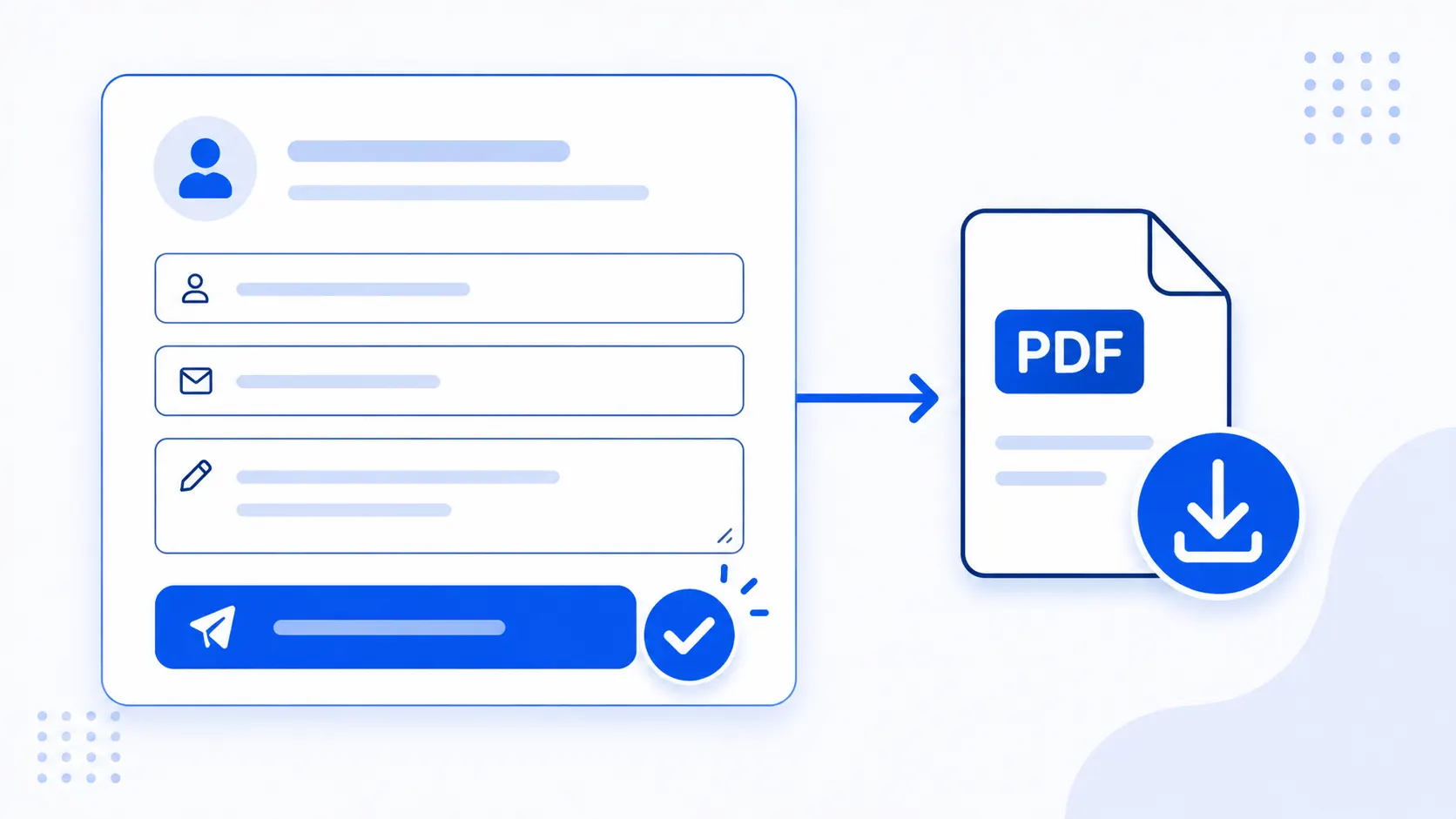
Sometimes a client just needs one thing: when a visitor fills out a Contact Form 7 form and submits it, a PDF should start downloading automatically — a brochure, a price list, a lead magnet. If you only need this for one or two forms, installing a full plugin for it is overkill. Here’s a simple, plugin-free solution using Contact Form 7’s own JavaScript events.
How This Works: Contact Form 7’s DOM Events
Contact Form 7 dispatches JavaScript custom events on the form’s wrapper element at various points in the submission lifecycle. The two most relevant here are wpcf7mailsent (fires only after the email is confirmed sent) and wpcf7submit (fires whenever the submission itself succeeds, regardless of whether the notification email actually goes out). The example below uses wpcf7mailsent, which is the right choice when the download should depend on the email genuinely being delivered; switch to wpcf7submit if you want the download to trigger even in cases where the mail server has a delivery issue. See the official Contact Form 7 DOM events documentation for the full list of available events.
Single Form: Download One PDF on Submit
This snippet listens for the mail-sent event, checks that it matches your specific form ID, then dynamically creates a hidden link with the download attribute, clicks it programmatically, and removes it shortly after.
<?php

add_action( 'wp_footer', 'add_download_pdf_file' );
function add_download_pdf_file()
{
   $pdf_url = 'https://wpwebguru.com/wp-content/uploads/2021/04/Sample.pdf';
   $contactform_id = (int) 1039;
   $filename = 'WpWebGuru';
   ?>

   <script>
      document.addEventListener( 'wpcf7mailsent', function( event )
      {
         if ( <?php echo $contactform_id;?> == event.detail.contactFormId )
         {
            var link = document.createElement('a');
            link.id = 'cf7fd-attachment-link';
            link.href = '<?php echo esc_url( $pdf_url ); ?>';
            link.target = '_blank';
            link.download = '<?php echo esc_attr( $filename ); ?>';
            document.body.appendChild(link);
            link.click();

            setTimeout(function()
            {
               link.remove();
            }, 2000);
         }
      }, false );
   </script>
   <?php
}

?>
Note: The code above swaps the original jQuery-built markup string for native document.createElement(), and wraps the PHP-echoed values in esc_url() and esc_attr(). Since $pdf_url and $filename are hardcoded by you rather than user input in this example, the risk is low — but escaping is a habit worth keeping even here, especially if you later make either value dynamic or editable from an admin settings page.
Warning: The HTML download attribute only forces a download reliably for same-origin files. If your PDF is hosted on a different domain or a CDN with a different origin than the page itself, most browsers will ignore download and simply navigate to (or open) the file instead of downloading it. Keep the PDF in your own wp-content/uploads folder, as shown here, to avoid this.
Multiple Forms: Download a Different PDF per Form
If you have several Contact Form 7 forms on your site, each triggering a different file, loop through an array of form ID/file pairs and register a separate listener for each one.
<?php

add_action( 'wp_footer', 'add_download_pdf_file' );
function add_download_pdf_file()
{
   $data = array (
    array(
      "id"=>"331",
      "url"=>"https://wpwebguru.com/wp-content/uploads/2021/04/Sample-1.pdf",
      "name"=>"File 1"
    ),
    array(
      "id"=>"332",
      "url"=>"https://wpwebguru.com/wp-content/uploads/2021/04/Sample-2.pdf",
      "name"=>"File 2"
    ),
    array(
      "id"=>"333",
      "url"=>"https://wpwebguru.com/wp-content/uploads/2021/04/Sample-3.pdf",
      "name"=>"File 3"
    ),
  );
  ?>

  <script>
    <?php
    foreach ( $data as $p )
    {
      ?>

      document.addEventListener( 'wpcf7mailsent', function( event )
      {
        if ( <?php echo (int) $p['id'];?> == event.detail.contactFormId )
        {
          var link = document.createElement('a');
          link.id = 'cf7fd-attachment-link-<?php echo (int) $p['id'];?>';
          link.href = '<?php echo esc_url( $p['url'] ); ?>';
          link.target = '_blank';
          link.download = '<?php echo esc_attr( $p['name'] ); ?>';
          document.body.appendChild(link);
          link.click();

          setTimeout(function()
          {
            link.remove();
          }, 2000);
        }
      }, false );

      <?php
    }
    ?>
  </script>

  <?php
}

?>
Note: Using the form’s own id value as part of the generated link’s id attribute (as shown above) keeps each dynamically created link unique even when several downloads could theoretically fire close together — the original version reused a counter variable for this, which works but is less readable than tying the link ID directly to the form it belongs to.
A Note on JavaScript-Dependent Downloads
This entire technique depends on JavaScript running in the visitor’s browser. If a visitor has JavaScript disabled (rare, but not zero), the download will silently never trigger with no error shown to them. For a more resilient fallback, configure Contact Form 7’s Additional Settings with an on_sent_ok action that redirects to a dedicated “thank you” page containing a normal, always-visible download link — that way, visitors get the file either way, and you have a page you can also use for conversion tracking.
If the PDF Should Actually Be Gated Behind the Form
Worth knowing: the PDF URL in these examples lives in your public wp-content/uploads folder, which means anyone who discovers or guesses that URL can download it directly — without ever filling out the form. If the whole point of gating the file behind a form submission is lead generation (you want the email address before the download happens), a direct static URL doesn’t actually enforce that; it only makes the “happy path” look gated in the UI. For a setup that genuinely requires a successful submission before the file becomes accessible, you’d need a short-lived signed URL or token generated server-side after the form processes — a good use case for a custom REST API endpoint that issues a one-time download link rather than exposing a permanent static path. For a general refresher on locking down access appropriately, see our WordPress security checklist.
Wrapping Up
For a single quick download-on-submit use case, the snippet above is genuinely simpler than installing and configuring a dedicated plugin. Just remember its two real limitations: it depends on JavaScript being enabled, and the file itself isn’t actually access-controlled just because it’s triggered by a form — both fixable with the fallback and gating approaches described above if your use case needs them. And that’s it — happy coding!


4 replies on “How To Download pdf file after submitting the Contact Form 7”
Thank you!
Hi, appreciate your sharing and I got recommendation from Blue Sky team.
The first PHP is exactly what I am looking for. Shame I am not a code specialist so would you help and tell me where to place the code paragraph in my Bluehost dashboard please? Thanks a bunch first.
just put that code in your themes functions.php at the bottom
The first PHP worked perfectly. Thank you.
Only thing is it doesn’t work on iPhone? Any ideas appreciated. Thank you