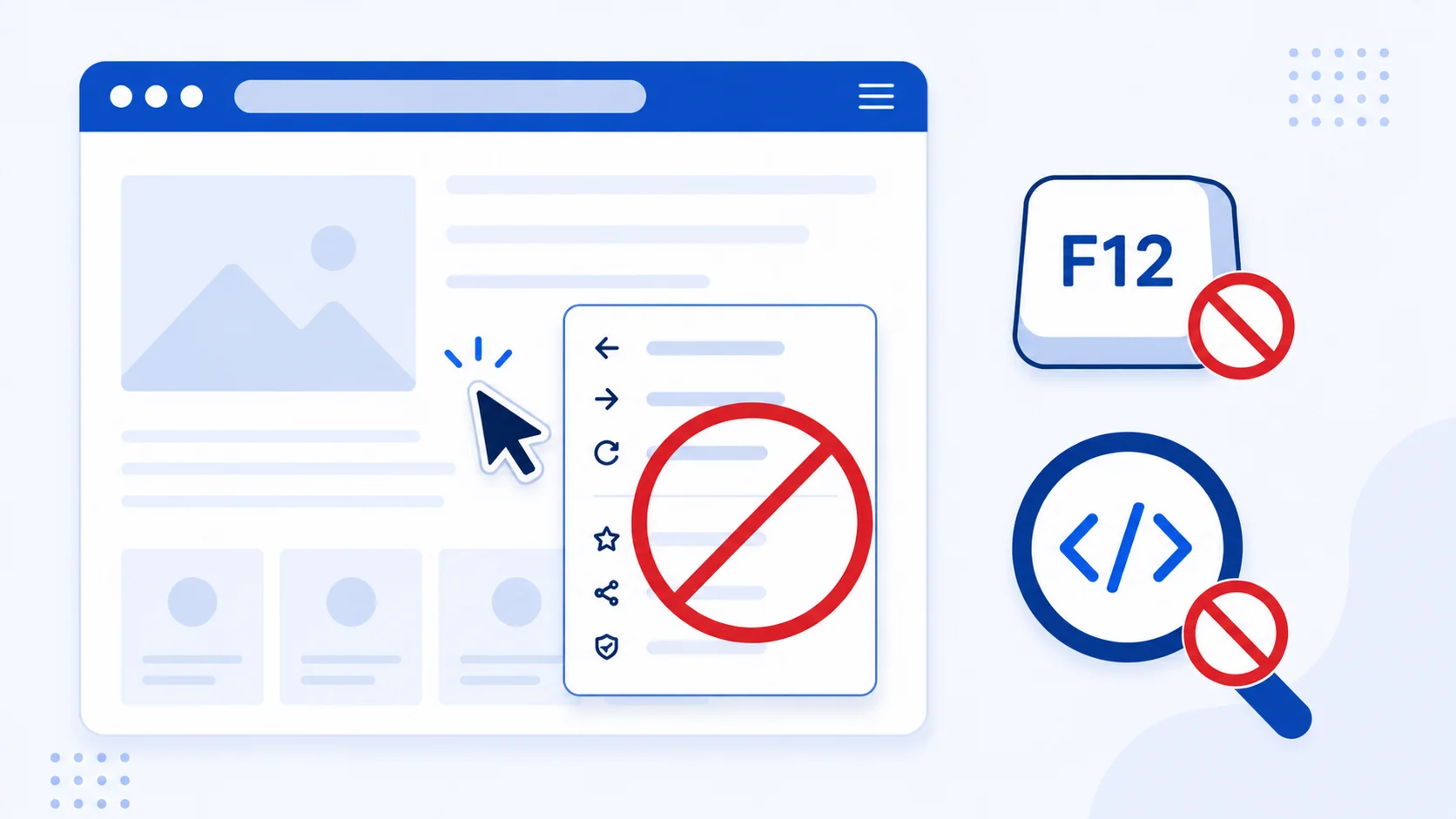
How to Disable Right-Click on a Page Using jQuery
Sometimes you don’t want visitors using the mouse’s right-click menu on a page — often to make casually copying images or text a little less convenient. It’s possible to either completely or partially disable the right-click context menu, or replace it with a custom dialog specific to your webpage. The contextmenu event fires on an element when the right mouse button is clicked, but before the browser’s context menu actually appears — which is exactly the moment this technique intercepts.
Warning: Before using any of the code below, understand what it actually does: it makes casual copying slightly less convenient, nothing more. It is not a security measure, and it will not stop anyone determined to view your source, copy your text, or download your images. Treat it purely as a minor UX deterrent, not protection — see the “What This Doesn’t Protect You From” section below for the specifics.
Disable Right-Click with jQuery
The following code prevents the right-click context menu on your webpage. It captures the contextmenu event when a user attempts to right-click and returns false in the event handler, blocking the browser’s default context menu from appearing.
$(document).on("contextmenu", function(e)
{
	return false;
});
Note: The original version of this snippet used jQuery’s .bind() method. .bind() has been deprecated since jQuery 3.0 in favor of .on(), which is more efficient (it supports event delegation) and is the method jQuery’s own documentation now recommends. The code above uses .on() for that reason — if you’re maintaining older code that still uses .bind(), it still works, but there’s no reason to write new code with it.
Disable F12 and Developer Tools Shortcuts with jQuery
This snippet listens for the keyboard shortcuts most commonly used to open browser developer tools and view source, and blocks the default action for each:
$(document).on("keydown", function (event)
{
	if (event.keyCode === 123)
	{
		// Disable F12 (Developer Tools)
		return false;
	}
	else if (event.ctrlKey && event.shiftKey && (event.keyCode === 73 || event.keyCode === 74 || event.keyCode === 67))
	{
		// Disable Ctrl+Shift+I (Inspect), Ctrl+Shift+J (Console), Ctrl+Shift+C (Inspect Element)
		return false;
	}
	else if (event.ctrlKey && event.keyCode === 85)
	{
		// Disable Ctrl+U (View Page Source)
		return false;
	}
});
The Same Thing Without jQuery (Vanilla JavaScript)
If jQuery isn’t already loaded on your site, there’s no need to add it just for this — both event handlers work identically with plain JavaScript and the native addEventListener API:
document.addEventListener('contextmenu', function (e) {
    e.preventDefault();
});

document.addEventListener('keydown', function (event) {
    if (event.key === 'F12') {
        event.preventDefault();
    } else if (event.ctrlKey && event.shiftKey && ['I', 'J', 'C'].includes(event.key)) {
        event.preventDefault();
    } else if (event.ctrlKey && event.key === 'u') {
        event.preventDefault();
    }
});
What This Doesn’t Protect You From
It’s worth being direct about the limits here, since this technique is frequently marketed online as a “security” measure — it isn’t one. Every one of these is trivial to bypass, often without any technical skill at all:
- Disabling JavaScript entirely in browser settings makes every one of these handlers do nothing, since they rely on JavaScript running in the first place.
- The browser’s own menu (three-dot menu > More Tools > Developer Tools, or the top menu bar) opens dev tools without touching a keyboard shortcut or the right-click menu at all.
- Typing
view-source:before your URL in the address bar shows the full page source in every major browser, completely bypassing theCtrl+Ublock. - Mobile browsers don’t use right-click or these keyboard shortcuts at all, so none of this code applies to a large share of visitors in the first place.
- The browser’s network tab and page source reveal every image URL and every line of HTML/CSS/JS your server sent, regardless of what the page’s own JavaScript tries to block afterward — by the time this code runs, the content has already been fully delivered to the visitor’s browser.
If You Actually Need to Protect Content
If your real goal is protecting images, video, or text from being copied or redistributed, client-side JavaScript tricks aren’t the right tool — the content is already sitting in the visitor’s browser by the time any of this code runs. Depending on what you’re protecting, better approaches include:
- Visible watermarks on images, which survive a screenshot or right-click save in a way JavaScript blocking never can.
- Serving low-resolution previews publicly and gating full-resolution files behind authenticated, server-side access checks.
- Proper server-side authentication for genuinely private content — the same access-control principles covered in our WordPress security checklist, and the same permission-callback pattern used in a custom REST API endpoint.
- Legal protection — a clear copyright notice and license terms won’t stop copying technically, but it does give you real recourse if someone republishes your content without permission.
For more on how browsers handle the contextmenu event and its full set of properties, see the MDN contextmenu event documentation, and the jQuery .on() documentation for the full range of events and delegation options it supports beyond what’s shown here.
Wrapping Up
Disabling right-click and dev-tools shortcuts is a two-minute snippet that mildly deters casual copying — nothing more, nothing less. Use it if that’s genuinely all you need, but don’t mistake it for security, and don’t let it get in the way of legitimate visitors who rely on right-click for accessibility tools, translation extensions, or simply opening a link in a new tab (which some over-aggressive versions of this script accidentally break too). If you’re protecting something that actually matters, put the real protection on the server, not in client-side JavaScript.