How to Display All Post Categories in WordPress
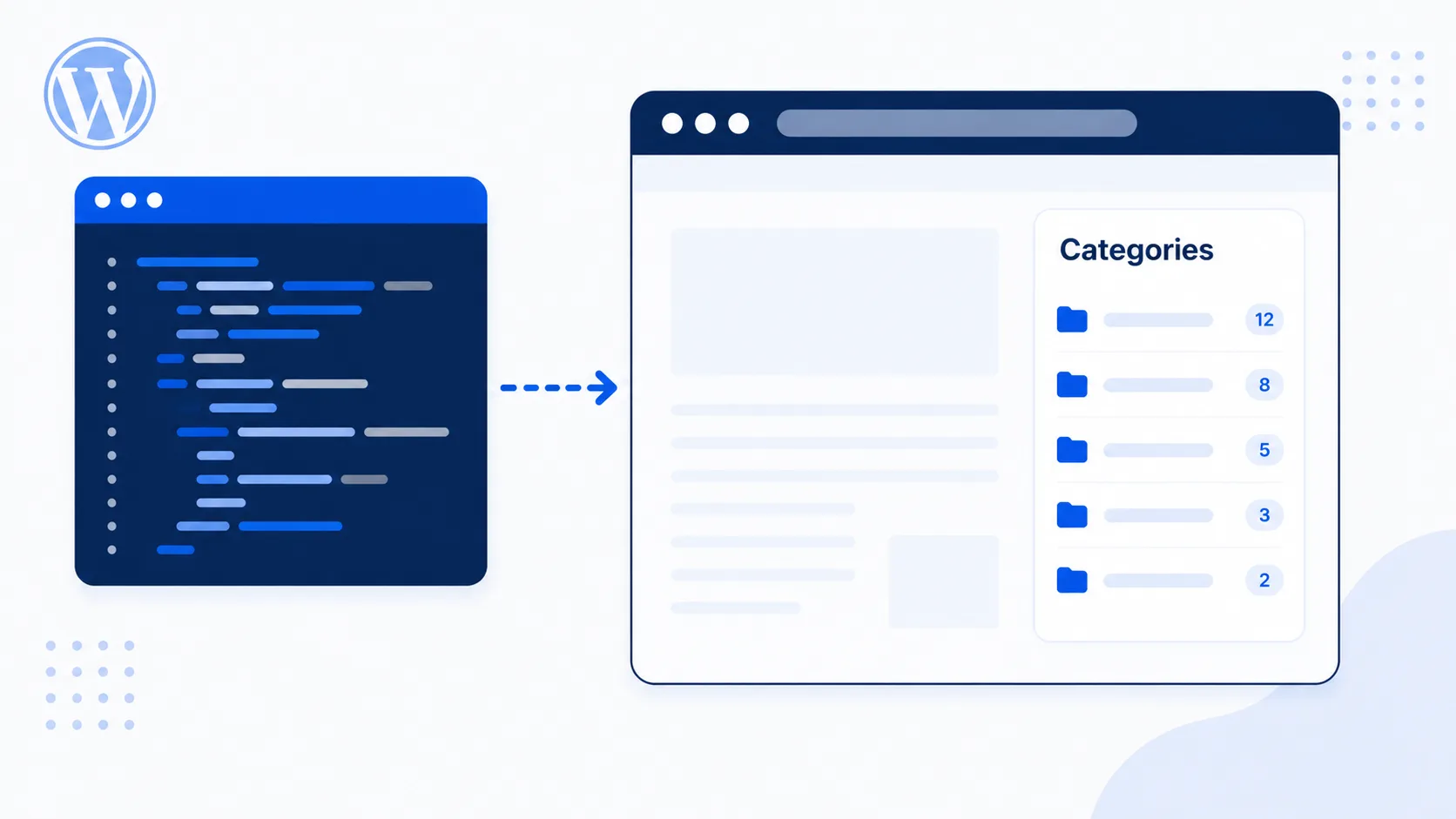
If you want to display a post category list on your WordPress site, this guide covers every practical method. As your blog content grows, it becomes helpful to surface categories to visitors — one of the most common patterns is listing categories in the sidebar so readers can browse by topic instead of scrolling through a chronological feed.
Categories let you sort content on your website and help visitors find what they’re looking for faster. They’re also good for SEO, since a well-organized category structure gives search engines (and Rank Math, if you’re using it) clear signals about how your content is grouped. Visitors can browse from the home page or refine their search by clicking through a category archive.
WordPress ships several built-in functions for retrieving categories: get_categories(), wp_list_categories(), and wp_dropdown_categories(). Each returns a different type of output — a raw array of objects, ready-made HTML, or an HTML <select> dropdown — so the right one depends on how much control you need over the markup.
Note: All three functions accept the same general shape of arguments — an array or a query string — which makes it easy to switch between them once you understand the parameters for one.
Option 1: get_categories()
This function returns a raw list of category objects, giving you full control to build your own HTML markup around them — the best choice when you need custom styling or structure that doesn’t match the default WordPress list output. For the full parameter reference, see the official get_categories() documentation.
<?php
$categories = get_categories( array(
    'orderby'       => 'name', //Defaults to 'date'
    'order'         => 'ASC', //Defaults to 'DESC'.
    'hide_empty'    => false, //if category is empty then show or not. Defaults to 'true'
));
?>
<ul class="blog-category">
    <?php
    foreach( $categories as $category ) {
        echo '<li class="category-item"><a class="category-link" href="' . get_category_link($category->term_id) . '">' . $category->name . '</a></li>';
    }
    ?>
</ul>
Output:-

Note: By default, hide_empty is true, meaning categories with zero posts are hidden. Set it to false, as shown above, if you want to display your full taxonomy structure regardless of post count — useful for a navigation menu you want to keep stable even as content changes.
Option 2: wp_list_categories()
The wp_list_categories() function returns pre-built HTML — typically a list of <li> elements — so you get a working category list with minimal code, at the cost of less control over the exact markup. For more information, see the official wp_list_categories() documentation.
<?php
$categories = wp_list_categories( array(
    'title_li'      => '<h2>' . __( 'Categories', 'textdomain' ) . '</h2>',
    'show_count'    => true, // if show count or not. Defaults to 'false'
    'style'         => 'list', // style used to display the categories list. Defaults to 'list'
    'hide_empty'    => false, // if category is empty then show or not. Defaults to 'true'
    'taxonomy'      => 'category', // Name of the taxonomy to retrieve. Default 'category'
));

echo $categories;
?>
Output:-

Warning: By default, wp_list_categories() echoes its output directly rather than returning a string — pass 'echo' => false in the args array if you need to capture the HTML into a variable instead of printing it immediately (for example, to include it inside a larger template string).
Option 3: wp_dropdown_categories()
This function returns the post category list as an HTML dropdown, useful for filter forms or any UI where visitors pick a single category from a <select> element. For more information, see the official wp_dropdown_categories() documentation.
<?php
wp_dropdown_categories( array(
    'hierarchical'  => true, // Whether to traverse the taxonomy hierarchy. Default 'false'
    'name'          => 'cat', // Value for the 'name' attribute of the select element. Default 'cat'.
    'id'            => 'cat_id', // Value for the 'id' attribute of the select element. Default $name.
    'class'         => 'cat-class', // Value for the 'class' attribute of the select element. Default 'postform'.
    'value_field'   => 'slug', // Term field used to populate the 'value' attribute of the option elements. Accepts: 'term_id', 'name', 'slug', 'term_group', 'term_taxonomy_id', 'taxonomy', 'description', 'parent', 'count'. Default 'term_id'.
    'taxonomy'      => 'category', // Name of the taxonomy to retrieve. Default 'category'
    'show_count'    => true, // if show count or not. Defaults to 'false'
    'style'         => 'list', // style used to display the categories list. Defaults to 'list'
    'hide_empty'    => false, // if category is empty then show or not. Defaults to 'true'
));
?>
Output:-

Filtering, Excluding, and Ordering Categories
All three functions accept additional parameters worth knowing for real-world use:
'exclude' => array(3, 7)— omit specific category IDs, useful for hiding an internal “Uncategorized” or admin-only category from a public list.'orderby' => 'count', 'order' => 'DESC'— sort by post count instead of name, showing your most active categories first.'number' => 5— limit the list to a fixed number of categories, handy for a compact sidebar widget.'parent' => 0— only return top-level categories, excluding child categories from a hierarchical taxonomy.
Adding the Category List to Your Sidebar
To actually display the list in your theme’s sidebar, wrap one of the functions above in a custom function and hook it into your theme, or drop the code directly into sidebar.php inside a <?php ... ?> block. If you’d rather not touch template files, WordPress’s built-in Categories block editor block does the same thing visually through the Widgets screen — useful if you want editors to manage sidebar content without PHP access.
Common Mistakes to Avoid
- Forgetting
hide_empty => falseand wondering why new, empty categories don’t appear in the list. - Not escaping category names if you’re building custom HTML with
get_categories()and the category name could ever contain user-influenced text — useesc_html()around$category->nameas a safe default. - Querying categories inside a loop that runs on every page load without any caching — if you have a large number of categories, consider caching the output with a transient, the same pattern covered in our SQL query optimization guide.
Wrapping Up
That’s it — three different ways to display a category list, each suited to a different level of control. If you’re exposing categories or taxonomy data through your own API rather than a theme template, the same taxonomy functions work well inside a custom REST API endpoint, and if you’re building a reusable category-list block for the editor instead of a template snippet, see our guide on creating a custom Gutenberg block.