How to Add a Remove Product Button on the WooCommerce Checkout Page
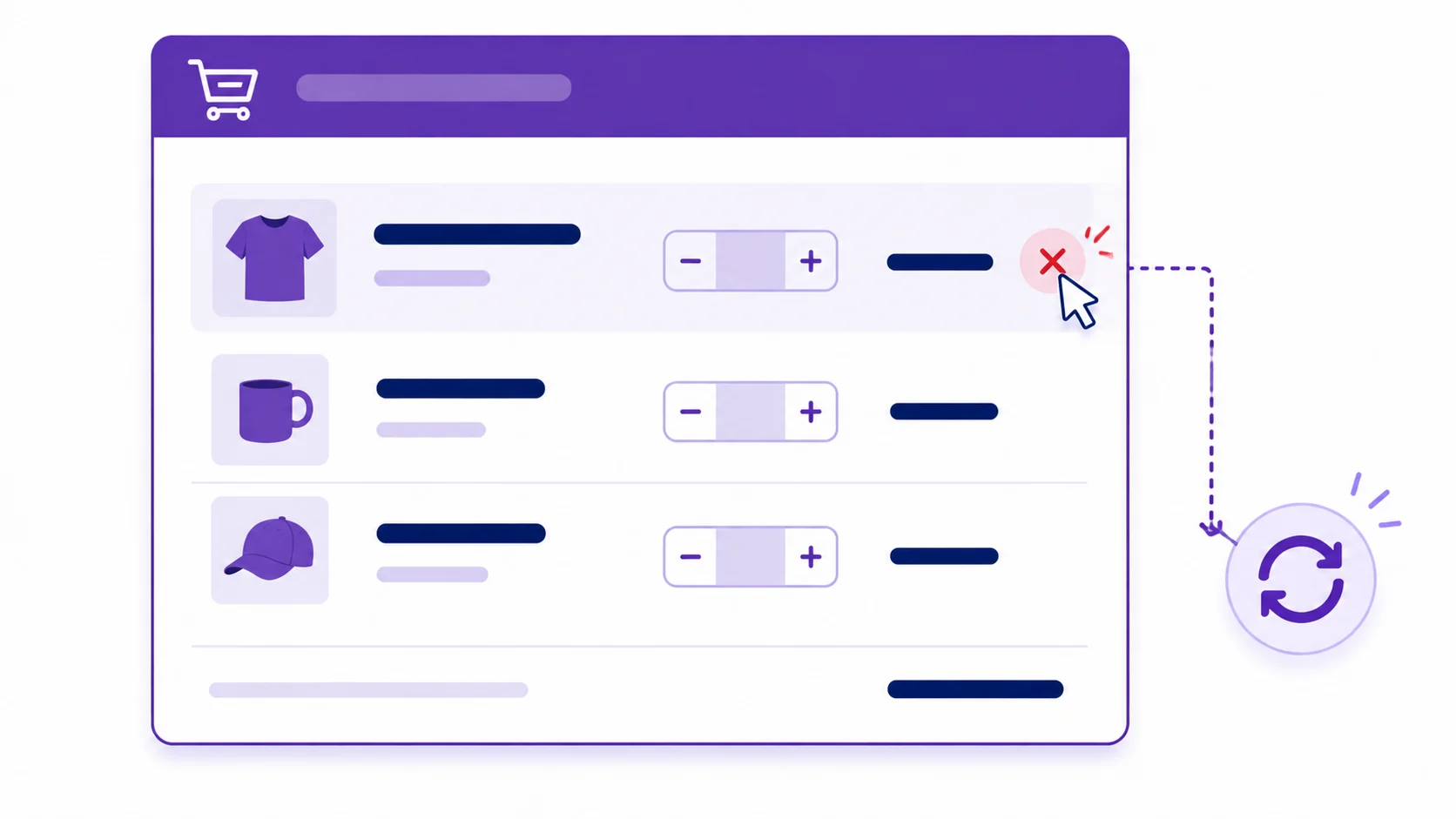
Remove product button in checkout page WooCommerce setups don’t include by default – WooCommerce shows a remove button next to each line item on the cart page, but not on checkout — if a customer changes their mind about an item while filling in their address and payment details, they have to navigate back to the cart page first. This guide adds a working remove button directly to the checkout page, and fixes a real UX bug in the plain-link version of this snippet that quietly redirects customers away from checkout entirely.
Step 1: Add the Remove Link Markup
WooCommerce’s woocommerce_cart_item_name filter controls how each line item’s name is rendered — on the cart page, on checkout, and in order review tables. Hook into it and prepend a remove link, matching the exact markup WooCommerce itself uses on the cart page:
<?php
add_filter( 'woocommerce_cart_item_name', 'wpwebguru_checkout_remove_item', 10, 3 );
function wpwebguru_checkout_remove_item( $product_name, $cart_item, $cart_item_key ) {
    if ( ! is_checkout() ) {
        return $product_name;
    }

    $product    = apply_filters( 'woocommerce_cart_item_product', $cart_item['data'], $cart_item, $cart_item_key );
    $product_id = apply_filters( 'woocommerce_cart_item_product_id', $cart_item['product_id'], $cart_item, $cart_item_key );

    $remove_link = apply_filters( 'woocommerce_cart_item_remove_link', sprintf(
        '<a href="%s" class="remove" aria-label="%s" data-product_id="%s" data-product_sku="%s" data-cart_item_key="%s">×</a>',
        esc_url( WC()->cart->get_remove_url( $cart_item_key ) ),
        esc_attr__( 'Remove this item', 'woocommerce' ),
        esc_attr( $product_id ),
        esc_attr( $product->get_sku() ),
        esc_attr( $cart_item_key )
    ), $cart_item_key );

    return '<span class="checkout-remove-wrap">' . $remove_link . '</span> <span>' . $product_name . '</span>';
}
?>
Note: The corrected version adds a data-cart_item_key attribute and an early-return guard clause (if ( ! is_checkout() )) instead of wrapping the whole function body in an if block — both are needed for the AJAX handling in the next step, and the guard clause makes the function easier to read.
Step 2: Fix the Redirect Problem with AJAX
The link’s href alone is enough to remove the item — WordPress will process the removal correctly. The problem is what happens after: WC()->cart->get_remove_url() is the exact same function the cart page uses, and by default it redirects back to the cart page once the item is removed, not back to checkout. A customer removing one item from a three-item order on checkout would unexpectedly get bounced back to their cart, losing whatever they’d already filled in on the checkout form in some setups.
The fix is to intercept the click with JavaScript, remove the item via WooCommerce’s existing AJAX endpoint (the same one the cart page’s own JS uses), and refresh the checkout totals in place instead of navigating anywhere:
<?php
add_action( 'wp_footer', 'wpwebguru_checkout_remove_ajax' );
function wpwebguru_checkout_remove_ajax() {
    if ( ! is_checkout() ) {
        return;
    }
    ?>
    <script>
    jQuery( function( $ ) {
        $( document ).on( 'click', '.woocommerce-checkout .remove', function( e ) {
            e.preventDefault();

            var $link = $( this );
            var cartItemKey = $link.data( 'cart_item_key' );

            $.ajax( {
                type: 'POST',
                url: '<?php echo esc_url( WC_AJAX::get_endpoint( 'remove_from_cart' ) ); ?>',
                data: {
                    cart_item_key: cartItemKey
                },
                success: function() {
                    // Re-runs checkout's own update process: refreshes totals,
                    // shipping options, and the review-order table in place.
                    $( document.body ).trigger( 'update_checkout' );
                }
            } );
        } );
    } );
    </script>
    <?php
}
?>
Note: WC_AJAX::get_endpoint('remove_from_cart') resolves to WooCommerce’s real, already-registered remove_from_cart AJAX action — the same one wc-cart.js calls on the cart page. Reusing it here means you’re not building a custom endpoint from scratch or duplicating cart-modification logic; you’re just wiring the same core behavior into a page WooCommerce doesn’t show it on by default. Triggering update_checkout afterward is the standard WooCommerce JS event for refreshing checkout’s totals and order review table without a full page reload — the same event checkout’s own shipping and coupon forms trigger internally.
Step 3: Style the Remove Button
WooCommerce’s default cart page CSS already styles .remove, but checkout’s stylesheet may not include those rules. A minimal fallback:
.checkout-remove-wrap .remove {
    display: inline-block;
    color: #a00;
    text-decoration: none;
    font-weight: bold;
    margin-right: 6px;
}
.checkout-remove-wrap .remove:hover {
    color: #fff;
    background-color: #a00;
    border-radius: 50%;
}
Common Mistakes to Avoid
- Using the plain link without the AJAX handler, which redirects the customer to the cart page instead of keeping them on checkout — the core issue this guide fixes.
- Forgetting the
is_checkout()guard on either hook, which would also add the remove button (and its script) to the cart page, order-received page, and anywhere else the item name filter fires. - Removing the last item in the cart without handling that case — consider redirecting to the shop or showing an “empty cart” message if
WC()->cart->is_empty()is true after the AJAX call succeeds, rather than leaving the customer on a checkout page with nothing to check out.
Wrapping Up
Getting the button to appear is a one-filter change; getting it to behave correctly — keeping the customer on checkout instead of redirecting them away — is the AJAX piece most versions of this snippet skip entirely. If you’re also customizing quantity controls elsewhere in the WooCommerce cart/checkout flow, our guide on custom quantity plus/minus buttons follows the same pattern of hooking into WooCommerce’s existing filters and AJAX endpoints rather than rebuilding cart logic from scratch.