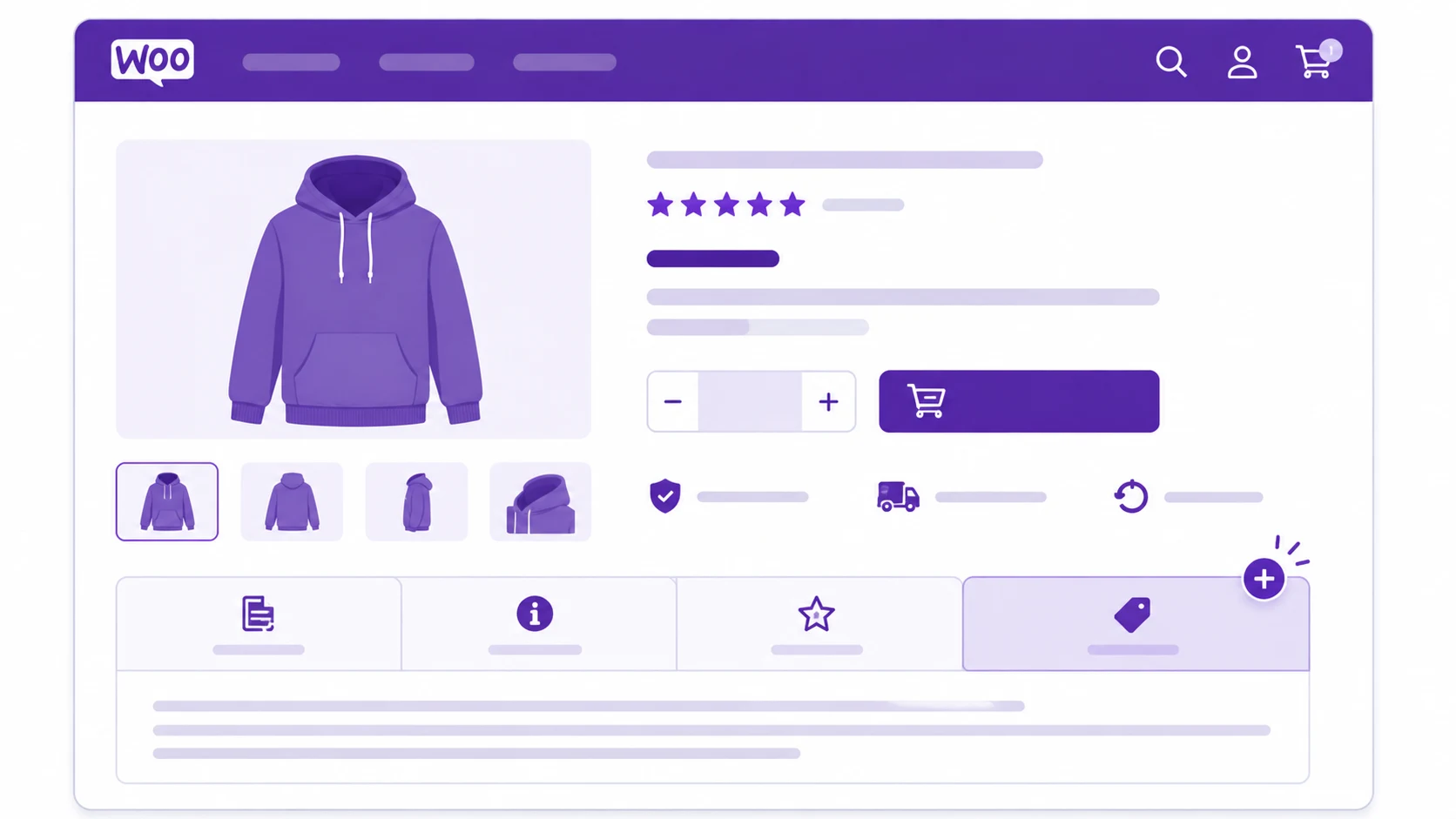
WooCommerce, a powerful and versatile e-commerce plugin for WordPress, allows you to sell anything, beautifully. However, one of its limitations is the default product page layout, which might not always meet your specific needs. Adding custom product tabs to WooCommerce can enhance your store’s usability, providing customers with more detailed information about your products. This guide covers both ways to do it, plus a few real-world details most tutorials on this topic skip.
Why Add Custom Product Tabs?
Before diving into the technical steps, it’s important to understand the benefits of adding custom product tabs:
- Enhanced Product Information: Custom tabs allow you to organize product information in a more structured way, providing detailed descriptions, specifications, reviews, FAQs, and more.
- Improved User Experience: By categorizing information into tabs, you can make your product pages cleaner and more user-friendly, reducing the need for long scrolling.
- Better SEO: Custom tabs can be optimized with relevant keywords, improving your product page’s search engine ranking.
Methods to Add Custom Product Tabs
There are two ways to add custom product tabs in WooCommerce:
- Using a plugin
- Adding a small snippet of code yourself
Method 1: Using a Plugin
Using a plugin is the easiest way to add custom product tabs, especially if you’re not comfortable writing PHP. A few popular options:
- WooCommerce Custom Product Tabs Lite
- YITH WooCommerce Tab Manager
- Custom Product Tabs for WooCommerce by SkyVerge
For this tutorial, we’ll use Custom Product Tabs for WooCommerce by SkyVerge.
Step-by-Step Guide:
- Install the Plugin:
- Go to your WordPress Dashboard.
- Navigate to Plugins > Add New.
- Search for “Custom Product Tabs for WooCommerce”.
- Click Install Now and then Activate.
- Configure the Plugin:
- After activation, go to WooCommerce > Settings > Products > Product Tabs.
- Here you can manage existing tabs and add new custom tabs.
- Add a Custom Tab:
- Edit any product in your WooCommerce store.
- Scroll down to the Product Data section and click on the Custom Tabs tab.
- Click on Add a Tab, then enter the title and content for your new tab.
- Save your changes.
That’s it — you’ve successfully added a custom tab to your WooCommerce product page using a plugin.
Method 2: Adding a Custom Product Tab with Code
If you’d rather not add another plugin, WooCommerce exposes a filter specifically for this — woocommerce_product_tabs. Add the snippet below to your child theme’s functions.php file, or better, a small site-specific plugin.
Warning: Whichever file you edit this in, don’t make the change through wp-admin’s built-in Appearance > Theme Editor. A single typo there can take the entire site down instantly with no way to recover through wp-admin, since a broken functions.php prevents WordPress itself from loading. Edit the file over FTP/SFTP or through your hosting file manager instead, where a mistake is easy to roll back. This is also exactly why our WordPress security checklist recommends disabling the Theme Editor entirely with DISALLOW_FILE_EDIT on a production site — take a full backup before editing either way.
add_filter( 'woocommerce_product_tabs', 'wpwebguru_custom_product_tab' );
function wpwebguru_custom_product_tab( $tabs ) {
    $tabs['wpwebguru_custom_tab'] = array(
        'title'    => __( 'Custom Tab', 'wpwebguru' ),
        'priority' => 50,
        'callback' => 'wpwebguru_custom_product_tab_content',
    );
    return $tabs;
}

function wpwebguru_custom_product_tab_content() {
    echo '<h2>' . esc_html__( 'Custom Product Tab', 'wpwebguru' ) . '</h2>';
    echo '<p>' . esc_html__( 'Here is your custom content.', 'wpwebguru' ) . '</p>';
}
Note: The corrected version prefixes both function names (wpwebguru_custom_product_tab instead of just custom_product_tab) and the tab’s array key. Generic function names like custom_product_tab are exactly the kind of thing that collides with another plugin or a theme using the same obvious name — the same class of fatal “Cannot redeclare” error covered in our custom widget guide, where a snippet that reused a common function name broke the whole site. Always give your own functions a unique prefix.
What the priority value controls: WooCommerce’s own default tabs use priorities 10 (Description), 20 (Additional Information), and 30 (Reviews) — a new tab registered at priority 50, as shown above, appears after all three default tabs. Lower the number to make your custom tab appear earlier in the row.
Pulling in Dynamic Content Instead of Hardcoded Text
The example above echoes static text, which is fine for something like shipping policy text that’s the same on every product. For per-product content — a size guide, care instructions, or any field that varies by product — pull it from a custom field instead:
function wpwebguru_custom_product_tab_content() {
    $custom_content = get_post_meta( get_the_ID(), 'wpwebguru_tab_content', true );

    echo '<h2>' . esc_html__( 'Custom Product Tab', 'wpwebguru' ) . '</h2>';

    if ( $custom_content ) {
        echo wp_kses_post( $custom_content );
    } else {
        echo '<p>' . esc_html__( 'No additional information available.', 'wpwebguru' ) . '</p>';
    }
}
Pair this with a custom fields metabox — see our guide on adding custom fields to posts and pages for the full pattern, which applies to WooCommerce products the same way since products are just a post type under the hood.
Removing or Renaming a Default Tab
The same filter can hide or rename WooCommerce’s built-in tabs — useful if you don’t sell anything with reviews enabled, for example:
add_filter( 'woocommerce_product_tabs', function( $tabs ) {
    unset( $tabs['reviews'] );
    return $tabs;
});
Tips for Effective Custom Tabs
- Keep it Relevant: Ensure the content in your custom tabs is relevant to the product — size guides, installation instructions, or customer reviews.
- Optimize for SEO: Use relevant keywords in your tab titles and content to improve search engine visibility.
- Test on Mobile: Make sure your custom tabs are responsive and provide a good experience on smaller screens.
Conclusion
Adding custom product tabs to WooCommerce can significantly enhance your product pages, giving customers organized, detailed information without a cluttered layout. Whether you use a plugin or the woocommerce_product_tabs filter directly, keep function names uniquely prefixed and edit theme files safely outside of wp-admin’s Theme Editor. If you’re customizing more of the WooCommerce experience beyond the product page itself, our guide on adding custom tabs to the My Account page follows the exact same filter-based pattern.