


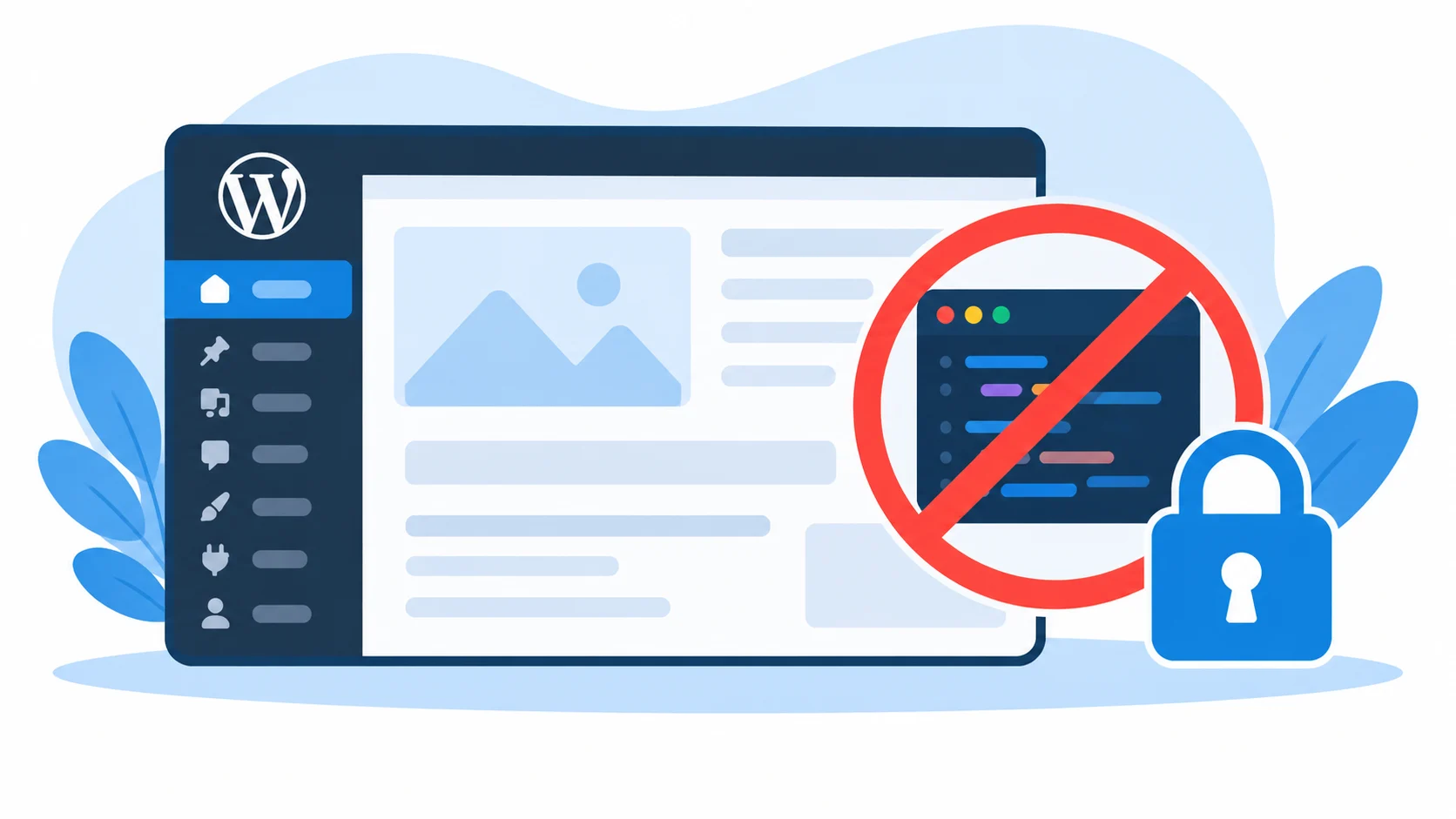
You open the WordPress dashboard to make a quick fix, but the Theme File Editor is missing. There is no Appearance → Theme File Editor and no Plugins → Plugin File Editor. Or you open the URL and get “Sorry, you are not allowed to access this page.” This is almost never a bug. Something is switching the editor off on purpose. This guide lists every cause and how to fix each one.
Quick answer
The most common cause is this line in wp-config.php:
define( 'DISALLOW_FILE_EDIT', true );Remove it (or set it to false) and the editors come back. If that line is not there, check the other causes below: a security plugin, DISALLOW_FILE_MODS, a block theme, your user role, or your host.
Where the Theme File Editor should be
- Classic themes: Appearance → Theme File Editor
- Block themes (WordPress 5.9 and later): Appearance → Editor opens the Site Editor, not the code editor. The code editor moves to Tools → Theme File Editor.
- Plugins: Plugins → Plugin File Editor
- Direct URLs:
/wp-admin/theme-editor.phpand/wp-admin/plugin-editor.php
Note: if you use a block theme, look under Tools first. Many people think the editor is gone when it has only moved.
Cause 1: DISALLOW_FILE_EDIT in wp-config.php
This constant removes both file editors from the admin and blocks them even if you type the URL. Open wp-config.php in your site’s root folder (over FTP, SFTP or your host’s file manager) and search for it:
define( 'DISALLOW_FILE_EDIT', true );Delete the line, or change true to false, then reload the dashboard. If you have WP-CLI, you can check the value without opening the file:
wp config get DISALLOW_FILE_EDITIf it prints 1 or true, the constant is set. Some hosts and installers add it for you, and so do some “hardening” tools.
Cause 2: DISALLOW_FILE_MODS
This is the stricter constant. It blocks the file editors and plugin and theme installs, updates and deletions from the admin:
define( 'DISALLOW_FILE_MODS', true );It is common on managed hosts and on sites that deploy through Git. If you remove it, you can install and update from the admin again. If your host sets it on purpose, ask them before you change it.
Cause 3: A security plugin or hardening tool
Security plugins often switch the editors off from their own settings, so wp-config.php looks clean and the editor is still gone. Look for options named “Disable file editor”, “Disable the plugin and theme editor” or “File editing” in the security plugin you use. Turn that option off and save.
Also check for a must-use plugin. Open wp-content/mu-plugins/ and search the files for DISALLOW_FILE_EDIT. A constant defined there is easy to miss.
Cause 4: Your user role does not have the capability
The editors need the edit_themes capability for themes and edit_plugins for plugins. Administrators have both on a normal single site. Editors, authors and shop managers do not. Log in as an administrator, or check what the current user can do:
wp user list-caps your-username | grep -E 'edit_themes|edit_plugins'Note: on a multisite network, only super admins can use the editors, and they are in the Network Admin area, not on each site.
Do not give extra capabilities to other roles just to see the editor. It lets that role run PHP on your server.
Cause 5: Your host turned it off
Some managed WordPress hosts disable file editing for security and performance. If you checked all of the above and nothing in your files sets it, contact your host and ask whether file editing is disabled at the server level.
How to fix it step by step
- Look under Tools → Theme File Editor if you use a block theme.
- Log in as an administrator (single site) or a super admin (multisite).
- Open
wp-config.phpand search forDISALLOW_FILE_EDITandDISALLOW_FILE_MODS. - Check your security plugin for a “disable file editor” option.
- Search
wp-content/mu-plugins/for the constant. - Ask your host if none of these is the cause.
Always keep a copy of wp-config.php before you edit it. A syntax error in this file takes the whole site down.
Should you turn the editor back on?
Think before you do. The built-in editor writes straight to live files, and has no backup. If an attacker gets into an administrator account, it lets them run PHP code on your server. That is why guides such as our WordPress security checklist recommend turning it off on production sites.
A good approach is to enable it only for the moment you need it, make your edit, and set DISALLOW_FILE_EDIT back to true. For bigger changes, edit the files over SFTP or on a staging site instead. Our guide on how to edit WordPress theme files safely covers child themes, backups and syntax checks.
If a change breaks your site, turn on logging to find the cause. See how to debug PHP errors in WordPress.
A safer way to edit files from the dashboard
If you want an editor with backups and a PHP syntax check, FileSmith Editor (free, with an optional Pro version) adds both. It respects DISALLOW_FILE_EDIT. If the constant is set, FileSmith Editor is not available either. That is by design. So the fix above still applies first: allow editing, then use a safer editor to do it. See the documentation for details.
Need other ways to change files? See how to edit WordPress files without FTP.
FAQ
Why is the Theme File Editor missing in WordPress?
Usually DISALLOW_FILE_EDIT is set in wp-config.php, a security plugin disabled it, or you use a block theme and the editor is under Tools.
What does DISALLOW_FILE_EDIT do?
It removes the Theme File Editor and Plugin File Editor from the admin and blocks access to them.
What is the difference between DISALLOW_FILE_EDIT and DISALLOW_FILE_MODS?
DISALLOW_FILE_EDIT only disables the editors. DISALLOW_FILE_MODS also blocks installing, updating and deleting plugins and themes.
Where is the Theme File Editor in a block theme?
Under Tools → Theme File Editor. Appearance → Editor opens the Site Editor.
Is it safe to enable the file editor again?
Only if you need it. Turn it off again afterwards, and take a backup before you save any change.
Why do I get “Sorry, you are not allowed to access this page”?
Your user does not have edit_themes or edit_plugins, or the editor is disabled by a constant or plugin.
One reply on “Theme File Editor Missing in WordPress? How to Fix It”
[…] It is often disabled. If the menu is missing, read Theme File Editor missing in WordPress. […]