A WordPress security release is one of those updates that is easy to postpone and hard to regret installing. WordPress 7.1.3 arrived on October 6, 2026, with seven security fixes and four bug fixes. The project recommends updating sites promptly. If you manage a WordPress site, the useful question is not whether updates matter; it is how to apply this one without surprising your visitors or your team.
This guide walks through a careful WordPress 7.1.3 security update: how to confirm which release applies to your site, what to check before clicking Update Now, how to verify the result, and what to do if the update does not complete cleanly. It is written for site owners and developers who want a repeatable process, not a reason to panic.
What changed in WordPress 7.1.3?
WordPress 7.1.3 is a maintenance and security release published on October 6, 2026. The official announcement lists seven security fixes and four bug fixes. The security work covers several different areas, including stored cross-site scripting in the Comments administration screen, denial of service in an HTTP URL helper, a second-order SQL injection issue in WXR exports, an author-role capability weakness, and exposure of comments on private or unpublished posts. It also addresses issues involving Imgur embeds and forgeable hook parameters.
That list is useful context for developers, but most site owners do not need to investigate each vulnerability before updating. The fixes are part of WordPress core; installing a patched release is the practical response. The precise impact depends on a site’s configuration and user roles, and the release announcement should be treated as the source for the official technical details.
A security update does not mean a site has already been compromised. It means the WordPress security team has corrected issues and recommends that administrators deploy those corrections. Keeping core current reduces the time a site runs known vulnerable code.
Check which WordPress version applies to your site
Before you follow a version-specific checklist, look at Dashboard → Updates or the version number in the admin footer. WordPress sites may be on different major release branches, and their available update paths can differ.
- If your site is on the current 7.1 branch, check whether WordPress 7.1.3 is available and apply the update.
- If your dashboard reports WordPress 7.0.7, that is a security release for the 7.0 branch. WordPress.org also recommends moving to the latest WordPress version, and notes that security fixes are backported to eligible older branches as they are ready. Check the Updates screen and your host’s update guidance rather than assuming that a version number from another site applies to yours.
- If your site is on an older major version, plan the update path carefully. A jump across releases can involve more compatibility checks than a routine point release.
WordPress.org currently identifies 7.1.3 as the latest release, while the 7.0.7 documentation records the security fixes for that branch. Use the WordPress Dashboard and the official release pages as your source of truth for the version your installation should run.
Before you update: a practical preflight checklist
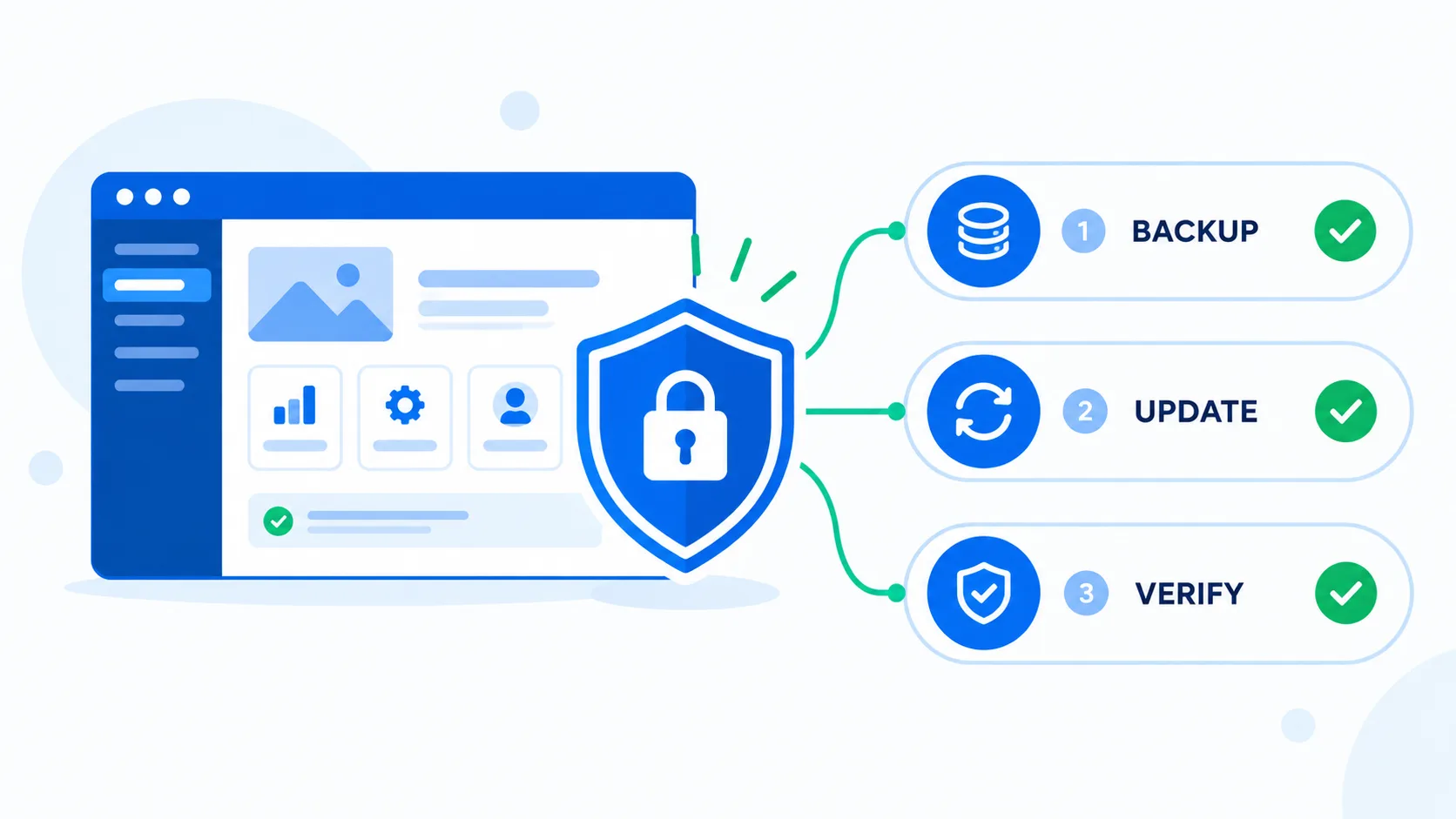
1. Confirm you can restore the site
Take a fresh backup of both the database and the WordPress files, or confirm that your host has a recent restore point you can access. A backup is useful only if you know where it is and how to restore it. For a busy store or membership site, confirm whether the backup process captures recent orders, registrations, and uploads.
If you are relying on a plugin or host backup, check the completion time and make sure it covers the whole site. Keep a copy outside the production server when your normal backup process supports that. Do not assume that a cache or staging clone is a backup.
2. Check the host and maintenance window
Make sure you have access to the WordPress admin, hosting panel, and any recovery method your team uses. For a small site, the Dashboard update may take only a few minutes. For a store, booking site, or high-traffic publication, choose a quieter period and tell anyone who might be editing content.
Do not start a core update while another deployment, database migration, or plugin update is running. Two changes at once make it much harder to identify the cause if something breaks.
3. Review plugins and themes
Check whether your theme and important plugins have updates or compatibility notes. Pay particular attention to custom code, checkout, login, forms, caching, security, and integration plugins. That does not mean every plugin must be updated in the same minute as WordPress core; it means you should understand the site’s moving parts before changing them.
If you maintain a custom theme or plugin, confirm that core files have not been edited directly. Changes made inside WordPress core can be overwritten during an update. Keep customizations in a child theme, custom plugin, or another maintainable extension point.
4. Use staging for complex sites
A staging copy is helpful when a site has custom integrations, a large plugin stack, or revenue-critical workflows. Apply the update there first, then test the actions that matter: sign-in, search, forms, checkout, account pages, and any custom admin screens. Staging is not a perfect replica of production, so still check the live site after deployment.
How to install the WordPress security update
For most sites, the Dashboard update is the simplest supported route:
- Sign in to the WordPress admin with an account that can update core.
- Open Dashboard → Updates and check the offered version.
- Confirm your backup and avoid starting another deployment at the same time.
- Select Update Now and wait for WordPress to report completion. Keep the browser tab open until the process finishes.
- Reload the Updates screen and confirm that WordPress reports the expected version.
WordPress can apply minor and security updates automatically on many installations. If automatic updates are enabled, still check that the update completed and that the site works. An email notification or a newer version number is a useful signal, but it is not a substitute for a quick front-end and workflow check.
If the one-click update fails, do not repeatedly click the button or upload random core files. Check the error message and host logs, confirm filesystem permissions, and follow the official manual update instructions or ask your host for help. The right repair depends on where the process stopped.
What to test after the update
Once WordPress reports success, test the site as both a visitor and an administrator. A short checklist catches many obvious problems:
- Open the home page and a few important pages in a private browser window.
- Sign in to wp-admin and confirm that the dashboard loads without a fatal error.
- Submit a contact form or another key form and confirm the expected notification arrives.
- For a shop, test product pages, cart, checkout, payment confirmation, and account access using your safe test process.
- Check pages that rely on custom post types, REST API integrations, embeds, or scheduled tasks.
- Review PHP and server error logs if a page behaves differently or a warning appears.
- Clear the relevant page or object cache if visitors still see stale output; avoid clearing every cache unless needed.
Test the actions that matter to your particular site rather than trying to click every page. A blog may need a quick check of search, comments, and publishing. A membership site should include registration and access control. A store should prioritize checkout and order handling.
If something looks wrong
First, note what changed and when. Check whether the issue is visible in a private browser, whether it affects all users, and whether the logs show a matching error. A display problem may be caused by cached assets; a fatal error may point to a plugin, theme, or PHP compatibility issue.
If the site is seriously broken, use the restore plan you confirmed before the update or contact your host. A rollback can restore service, but it may also remove data created after the backup. For an online store or membership site, coordinate any restore with the team responsible for recent orders or user activity.
When you can reproduce the issue safely, disable or update the suspected extension through a controlled process, ideally on staging first. Avoid making several unrelated changes at once. The goal is to isolate the source, restore the site, and then reapply the core update with a tested fix.
Common WordPress update mistakes to avoid
- Skipping the backup because the update is small. Point releases are still changes to production files and database behavior.
- Updating everything at once. Updating core, every plugin, and the theme in one batch obscures which change caused a failure.
- Assuming staging proves production is healthy. Use staging to reduce risk, then verify the live site after deployment.
- Editing core to solve a site-specific issue. Core modifications are overwritten by updates and make future maintenance harder.
- Ignoring the reported version. Confirm the version shown by the site itself and use official release documentation for branch-specific details.
- Rolling back without considering new data. A restore may remove orders, comments, uploads, or edits created after the backup.
A repeatable update routine for WordPress teams
Security updates are easier when they are part of normal maintenance rather than a last-minute scramble. Keep a short record of the site’s WordPress version, backup location, staging URL, key plugins, and critical user journeys. Decide who receives update notices and who is responsible for post-update checks.
For a simple brochure site, that routine can be a monthly maintenance reminder plus prompt installation of security releases. For a store or custom application, use a staging check for major changes and a small production verification checklist for every release. The level of process should match the cost of downtime, not the size of the team.
Also keep WordPress core, themes, and plugins maintained on a sensible schedule. A security release addresses core code; it does not patch a vulnerable third-party extension. Review each component’s update notes and remove plugins or themes the site no longer uses.
WordPress 7.1.3 update FAQ
Is WordPress 7.1.3 a security release?
Yes. WordPress.org describes 7.1.3 as a maintenance and security release with seven security fixes and four bug fixes, and recommends updating sites promptly.
Do I need to update if my site says WordPress 7.0.7?
WordPress 7.0.7 is a security release for the 7.0 branch. Check Dashboard → Updates for the recommended update path for your installation. WordPress.org says the latest version is the actively supported version, while eligible older branches receive security backports as they are prepared.
Will the update change my content?
A routine core update is intended to update WordPress files and related update data, not to rewrite posts or pages. Still, take a backup because updates affect core files and unexpected failures can happen.
Should I update plugins and themes at the same time?
Not automatically. Review compatibility and update notes, then change one layer at a time when you need to troubleshoot. If a plugin update is required for compatibility or security, include it in your plan and verify the site afterward.
Can automatic updates handle this?
Many WordPress sites can install minor and security updates in the background. Verify that your installation completed the update and test important site functions, especially if the site depends on custom code or business-critical workflows.
Final checklist
Before you close the task, confirm that you have: identified the correct update branch, taken or verified a restorable backup, applied the update through a trusted route, confirmed the WordPress version, tested critical visitor and admin workflows, and recorded any issue for follow-up.
That is enough process to take a WordPress security update seriously without turning it into a risky all-at-once maintenance event. Keep the site backed up, apply security fixes promptly, and verify the work that matters to your users.